How to Migrate From WordPress to Wix Studio in 2026
WordPress still powers a huge chunk of the web, but a lot of owners are quietly looking for the exit. Plugin sprawl, security updates, hosting headaches, and a builder that has barely changed in years — at some point you just want to ship.
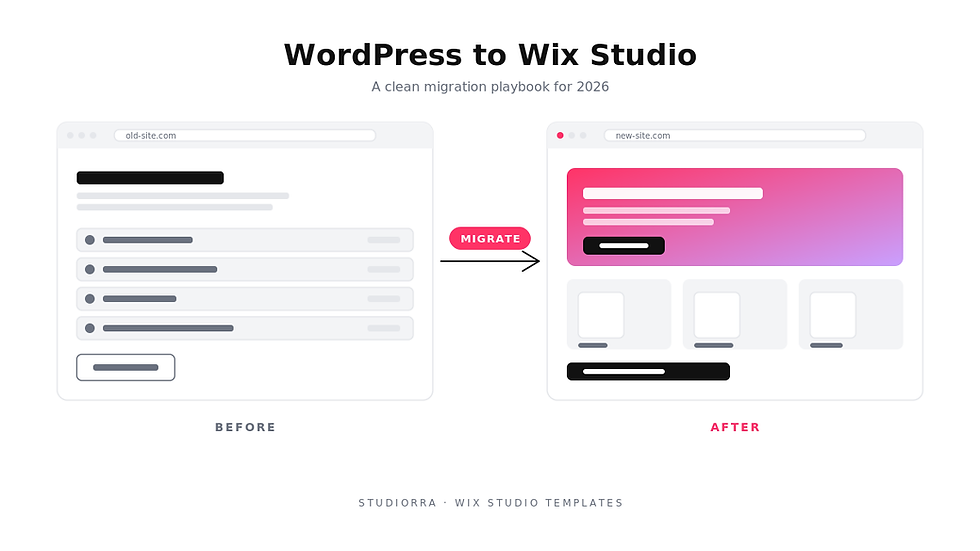
Wix Studio is one of the cleanest landing spots in 2026. Hosting, CDN, CMS, SSL, and a real responsive editor all sit in one account. This guide walks you through a calm, structured migration so you do not lose traffic on the way over.
When Wix Studio Is the Right Move
Not every WordPress site should leave. If you run a custom WooCommerce build with dozens of plugins, deep ACF logic, or a membership stack worth thousands of dollars a month, the cost to rebuild may not be worth it.
Wix Studio is the right move when your site is a marketing site, a service business, a portfolio, a small blog, or a lightweight ecommerce store. If most of your WordPress install is "five plugins doing what Wix Studio does natively," migration is almost always a win — fewer moving parts, fewer security alerts, and a real responsive editor instead of theme files.
Before You Touch Anything: Audit and Backup
Before you migrate a single page, take an honest inventory of your current site. You want to know exactly what you are moving so nothing falls through the cracks.
A solid pre-migration audit covers: every URL on the site, the top 20 to 50 pages by traffic, the source of that traffic, your current blog post slugs, redirects already in place, forms and where their submissions go, integrations like email marketing or CRM, and any custom code snippets.
Then take backups. Export your WordPress database, download the wp-content folder, and pull a CSV of your top pages from Search Console. Treat this as your safety net — you will not need most of it, but you absolutely want it sitting on your drive before you start.
Step 1: Choose Your Wix Studio Foundation
Open a new Wix Studio workspace and decide whether you are starting from a blank canvas or from a Studiorra template. Templates save weeks of work because they ship with the responsive breakpoints, components, and CMS collections already wired up.
Pick a template whose information architecture matches your existing site: a service template if you offer services, a SaaS template if you sell a product, a portfolio template if you are a designer or agency. Do not pick by hero image alone — pick by section structure.
Set up your design system early. Add your brand colors as global colors, your typography as text styles, and your spacing as design tokens. Future-you will be grateful when a brand tweak takes five minutes instead of two days.
Step 2: Rebuild Your Site Map First, Pages Second
The biggest mistake people make in migrations is rebuilding the homepage on day one. The homepage is the hardest page on the site. Start with the site map.
Map every page from WordPress to a Wix Studio page, marking which ones move one-to-one, which ones get merged, and which ones get dropped. Service businesses usually trim 20 to 40 percent of their pages during migration because so many old pages were thin, duplicate, or never ranked.
Once the site map is locked, build internal pages first — about, services, contact, individual blog posts — and only then come back to the homepage. By the time you reach it, you will have a clearer sense of what the site is really about.
Step 3: Move Your Content and CMS
For static pages, most teams just copy and paste, cleaning up the copy as they go. WordPress content is full of legacy formatting, empty paragraphs, and old shortcodes — migration is a good excuse to delete what no longer earns its place.
For blog posts, Wix has an import tool that pulls posts from WordPress directly. It is not perfect — expect to fix featured images, internal links, and some embeds — but it is far faster than rebuilding 80 posts by hand.
If WordPress was powering custom post types (case studies, products, team members), rebuild them as Wix Studio CMS collections. The CMS is one of the strongest reasons to be on Wix Studio in the first place: collections, dynamic pages, and bindings work without a single plugin.
Step 4: Protect Your SEO With Redirects
This is the step most DIY migrations get wrong, and the reason traffic sometimes drops after a launch.
Pull your full list of URLs from Search Console or a tool like Screaming Frog. For every URL that is changing — and many will, because WordPress slugs are often messy — set up a 301 redirect from the old URL to the new one inside Wix Studio's URL redirect manager.
Keep your meta titles, meta descriptions, and H1s where they already perform well. If a page ranks for a query, do not rewrite its title for the sake of "freshening it up." Migrate it, then optimize later once you have post-launch ranking data.
Step 5: Test, Then Cut Over Cleanly
Before you point your domain at Wix Studio, run the new site through the basics: every link, every form, mobile breakpoints, image sizes, the contact form, the booking flow, the checkout. Use the preview URL Wix gives you and click through every page as a real visitor would.
When you are ready, connect your domain, publish, and submit a fresh sitemap to Search Console. Expect a short ranking wobble for one to three weeks — that is normal during any platform migration, and well-structured 301s recover almost all of it.
For the first 30 days, check Search Console twice a week for crawl errors and watch your top 20 pages closely. Any sudden drop usually points to a missed redirect, not a deeper SEO problem.
What You Gain on the Other Side
Once the migration is done, the day-to-day looks very different. No plugin updates at 11pm. No theme conflicts after a WordPress core release. No hosting bills that climb every renewal. One editor, one account, one place where the site lives.
You also get a real responsive system — the kind designers actually want — instead of CSS workarounds inside theme files. For most marketing sites in 2026, that alone is the upgrade.
If you want a head start, the Studiorra template library is built specifically for Wix Studio and is structured to make migrations like this faster. Pick a template close to your existing layout, drop your content in, and you can be live in a fraction of the time a from-scratch rebuild would take.

Comments